
TrafficStars MCP Server
Point your AI assistant here and it can run your TrafficStars account for you — as an advertiser, pull statistics, tune bids and targeting, launch and manage campaigns; as a publisher, add sites, set up ad spots and track your earnings. The address below is an MCP (Model Context Protocol) endpoint that Claude, ChatGPT and other MCP-capable assistants know how to talk to.
https://mcp.trafficstars.comSet up your assistant
Claude (claude.ai and Claude Desktop)
Claude Desktop · also works on claude.ai
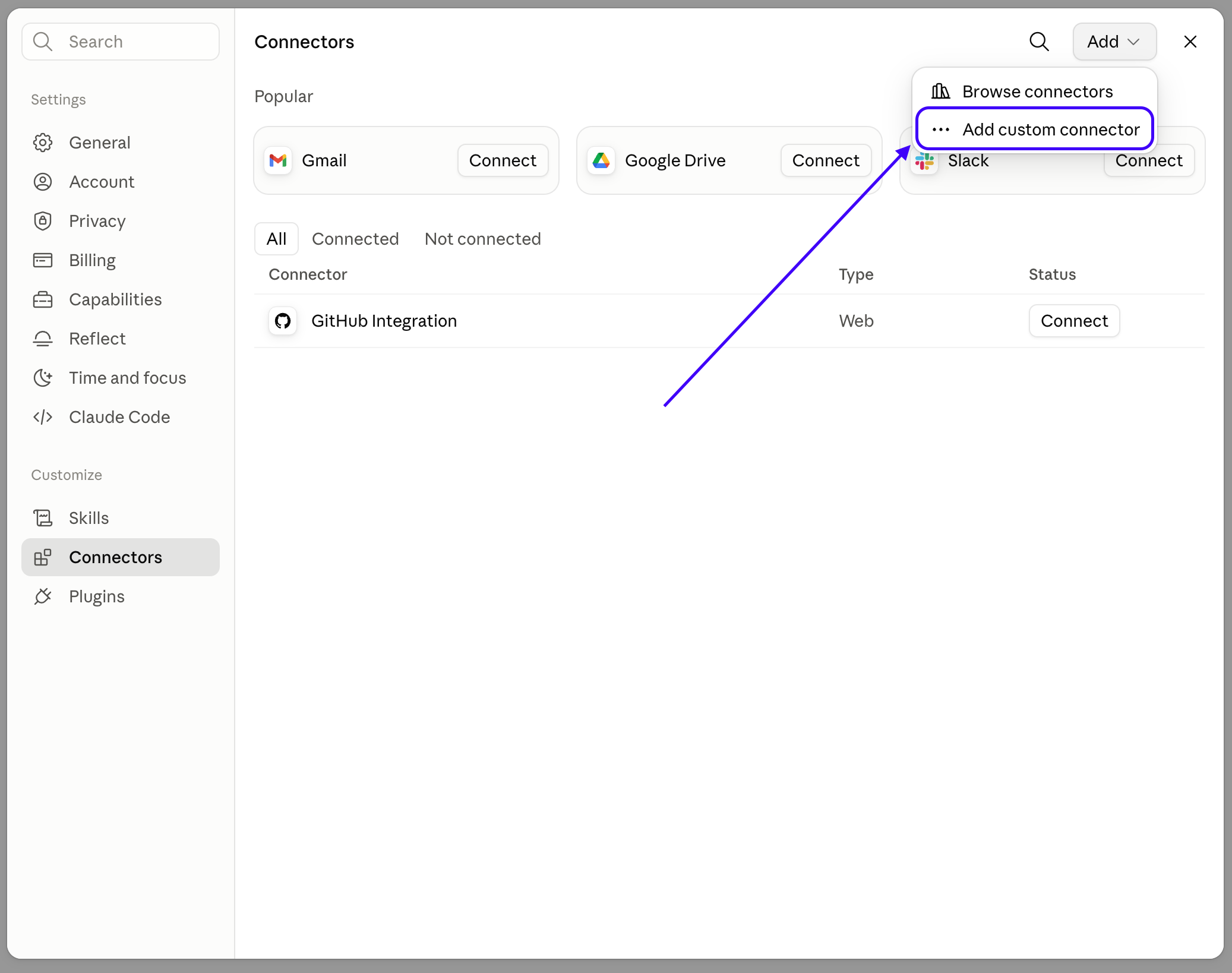
- Open Settings → Connectors under Customize. In the Add menu, choose Add custom connector.
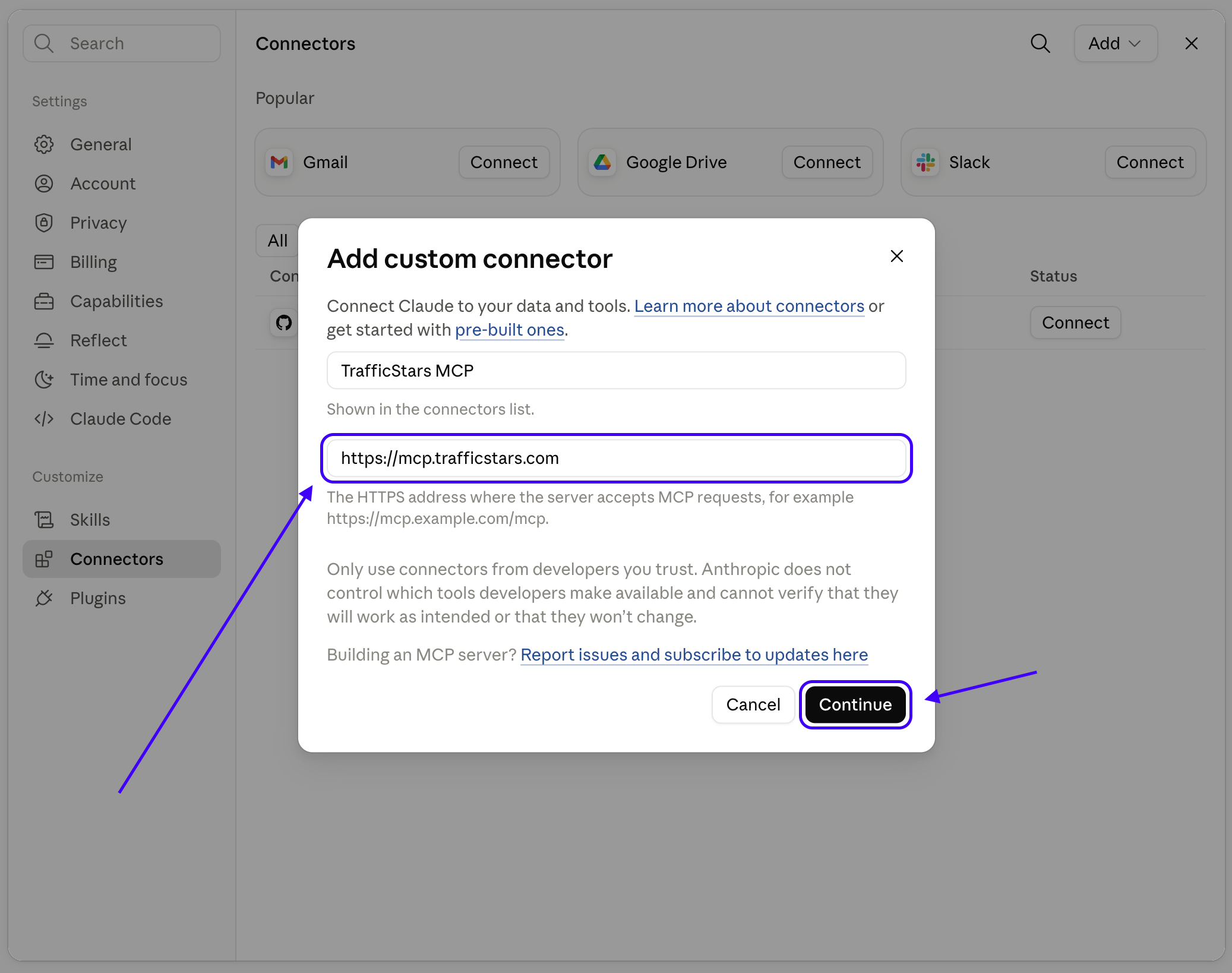
- Name it TrafficStars MCP, paste the connector URL above and click Continue.
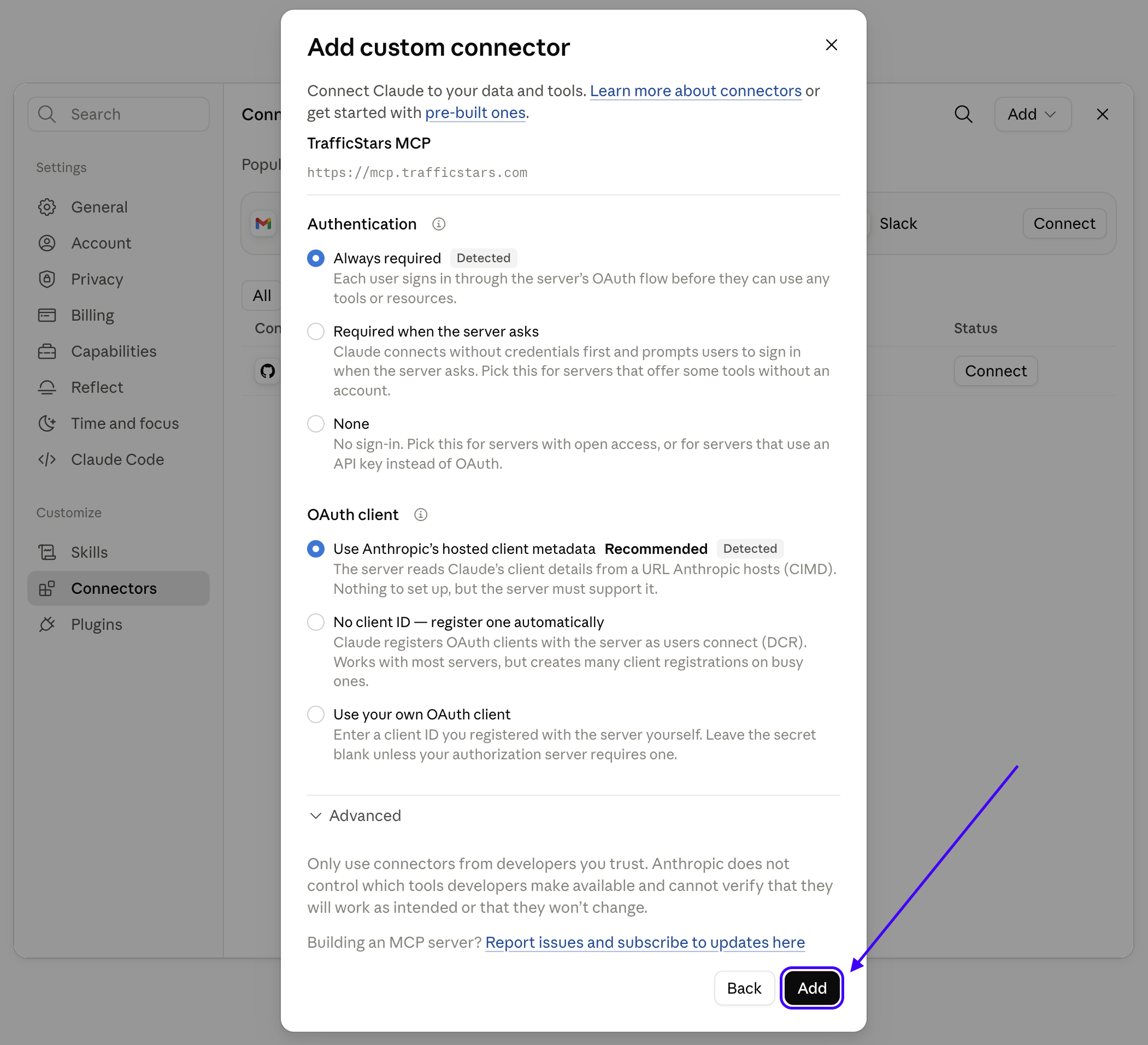
- Review the detected settings: Always required for authentication and Use Anthropic’s hosted client metadata for the OAuth client. Click Add.
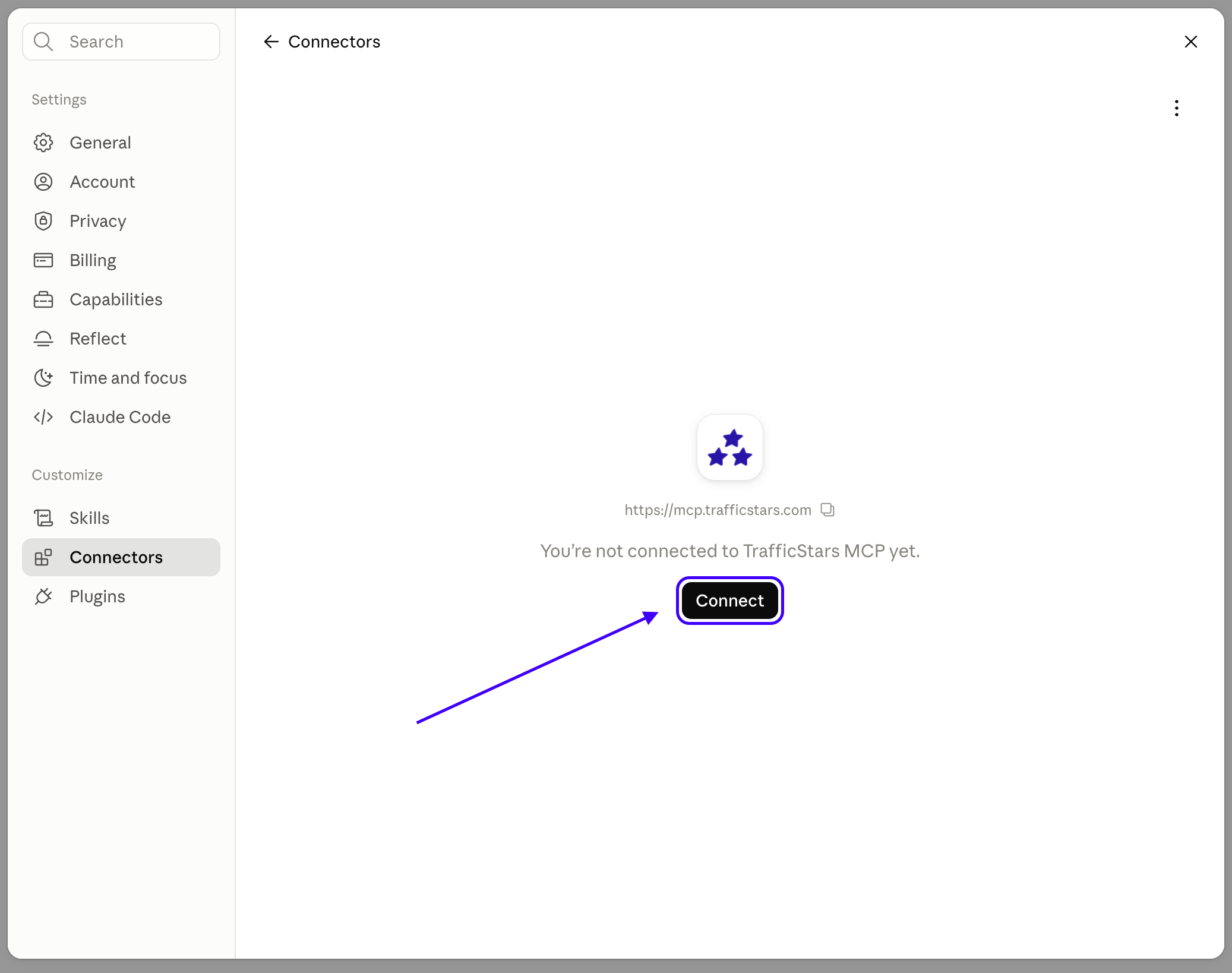
- Click Connect and sign in to TrafficStars. In a new chat, enable TrafficStars under + → Connectors.
Or run in a terminal: for Claude Code
claude mcp add --transport http trafficstars https://mcp.trafficstars.comWith Claude Code installed, start claude, run /mcp and choose trafficstars to sign in.
For Team or Enterprise, an owner may need to add the connector first. Setup help ↗
ChatGPT / Codex
ChatGPT desktop · Work
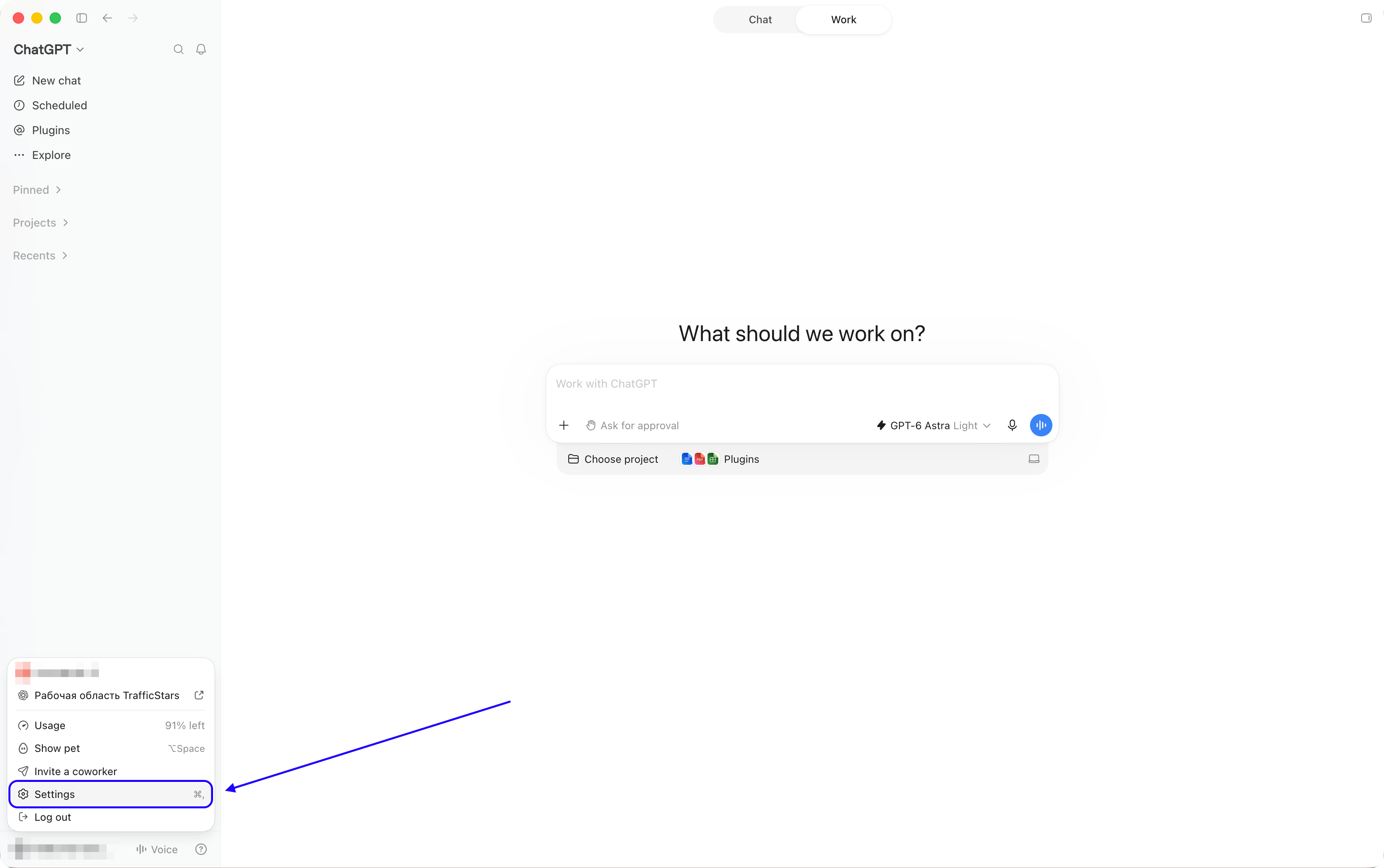
- Open your profile menu and select Settings.
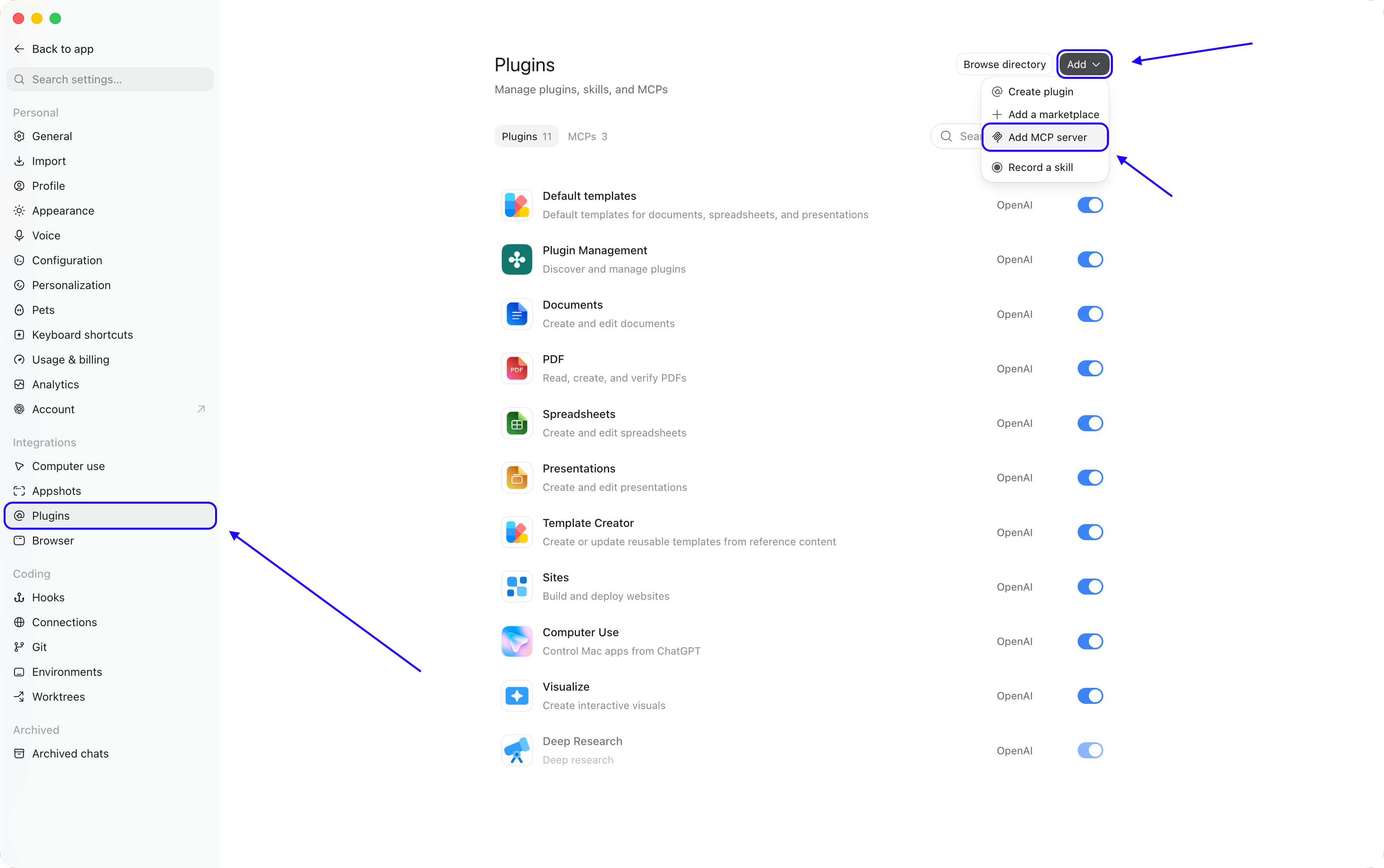
- Open Plugins. In the Add menu, choose Add MCP server.
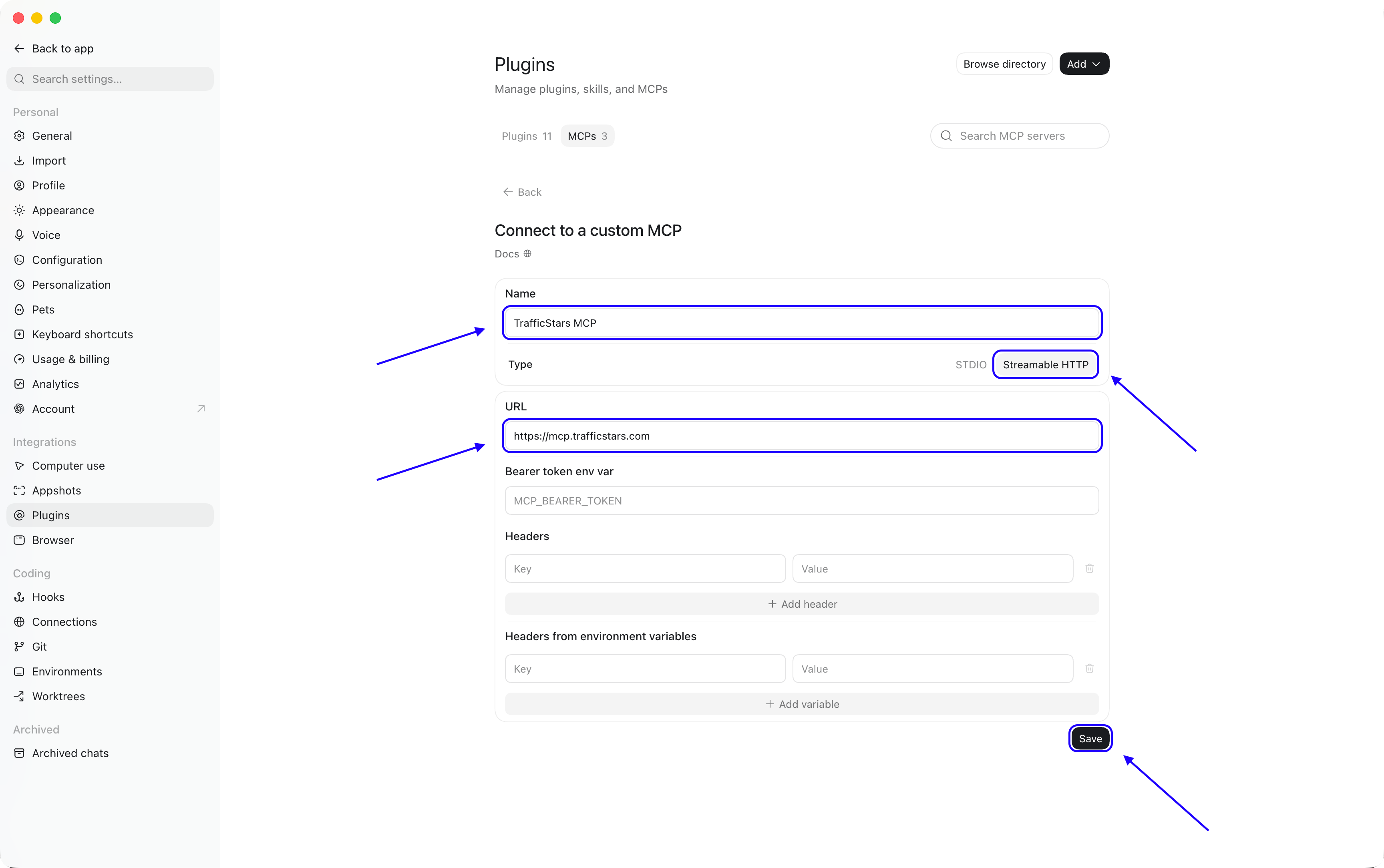
- Enter TrafficStars MCP, select Streamable HTTP and paste the connector URL above. Leave the token and header fields empty, then click Save.
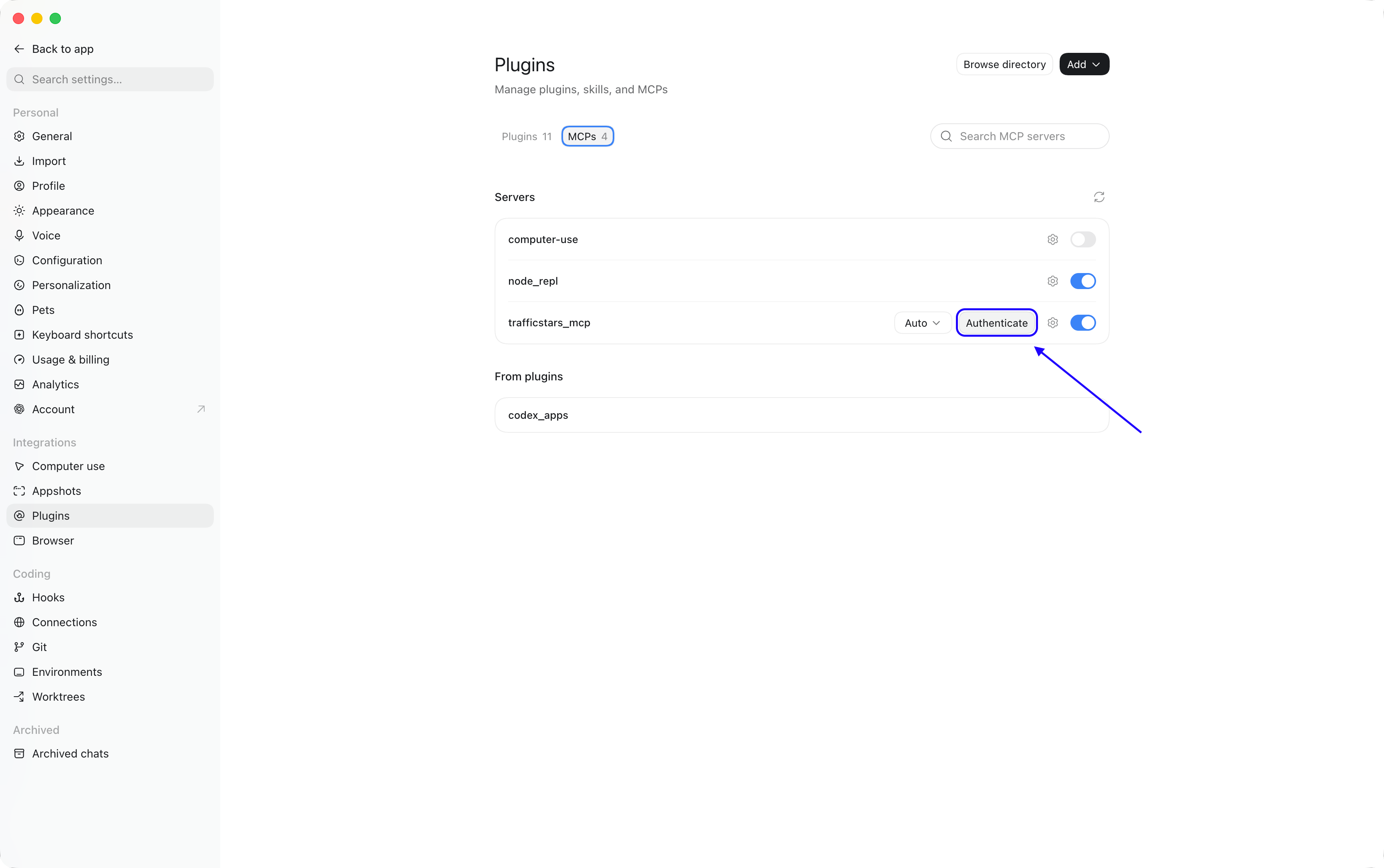
- In the MCPs tab, find the TrafficStars server and click Authenticate.
- Review the application and callback address in the access request. Click Allow Access to continue, and sign in to TrafficStars if prompted.
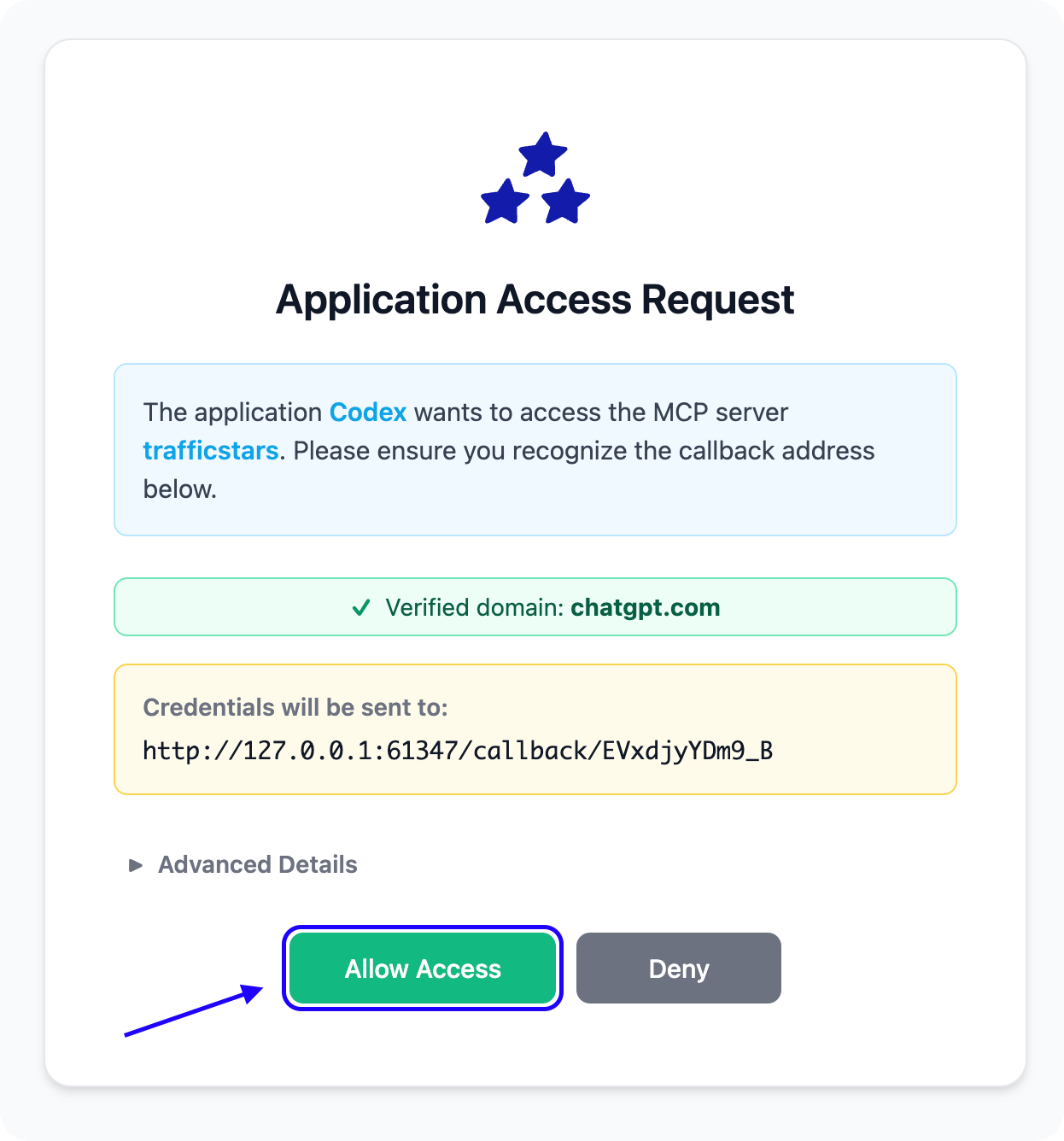
Or run in a terminal: for Codex CLI
codex mcp add trafficstars --url https://mcp.trafficstars.com
codex mcp login trafficstarsWith the Codex CLI installed, run these commands and sign in when the browser opens. The desktop app, CLI and IDE extension share MCP configuration on the same Codex host. In the CLI, use /mcp to check the connection. Codex setup help ↗
Other MCP clients
Use the same connector URL with a client that supports remote Streamable HTTP and OAuth sign-in.
Connection trouble? Check the URL, sign in again and enable the connection for your conversation. Your workspace may require an owner’s approval. Contact support if it still fails.
What you can ask
As an advertiser
- Create a banner campaign for India, CPM, my offer is https://trafficstars.com
- Analyze my campaigns performance
- Which campaigns spent the most yesterday without a single conversion? Pause them.
As a publisher
- Create site trafficstars.com
- How much did my sites earn this week, by spot?
Tools
Tools available to each account role; access depends on your account permissions.
All tools (153)
Advertiser (114)
- Add a campaign note
- Add a creative to a campaign
- Archive campaign groups
- Archive campaigns out of the working list
- Assign an optimizer to campaign groups
- Assign an optimizer to campaigns
- Bring archived campaigns back
- Bring archived groups back
- Bulk update campaign frequency capping
- Campaign statistics for any period, grouped
- Change a campaign’s bid, budgets or schedule
- Change a draft campaign that has not been published
- Change a published campaign
- Change one creative
- Change what a campaign targets
- Check whether server-to-server conversions arrive
- Create a campaign group
- Create a conversion goal
- Create a new campaign (as a draft)
- Create a retargeting list (v1)
- Create or change an optimizer strategy
- Create retargeting conditions for a campaign (v1)
- Delete a banner
- Delete a campaign group
- Delete a campaign's retargeting conditions (v1)
- Duplicate a campaign into an editable draft
- Duplicate a published campaign
- Find spots to target
- Get a campaign
- Get a campaign group
- Get a campaign's retargeting conditions (v1)
- Get a single ad format
- Get a user by id
- Get a user's onboarding state
- Get campaign competitor analysis
- Get campaign reject reasons
- Get campaign total spending
- Get currency exchange rate
- Get current user's Intercom integration data
- Get one campaign in full
- Get the current user's account manager
- Get the current user's balance
- Hourly RTB producer (DSP) report for a date
- How much the advertiser spent in a month
- List / find campaigns
- List a campaign’s creatives
- List a campaign’s custom per-spot bids
- List a site’s spots
- List a user's conversion goals
- List a user's retargeting lists (v1)
- List ad formats with their ids
- List applications
- List applications (request-body variant)
- List auto-bidding strategies
- List banner reject reasons
- List browsers
- List campaign groups
- List campaign groups (body filters)
- List campaign limitation flags
- List campaign notes
- List campaigns
- List content categories
- List creatives with filters
- List device brands
- List device types
- List every country the platform serves
- List geo regions (body variant)
- List geo regions (query variant)
- List mobile carriers
- List news
- List operating systems
- List optimizer sources
- List optimizer variables
- List regions within a country
- List RTB clients (DSPs)
- List targetable languages
- List the campaign statuses the platform uses
- List traffic types
- Look up targeting ids: countries, regions, devices, browsers…
- Look up what to bid for a targeting combination
- Mass-delete a campaign's custom spot prices
- Mass-set a campaign's custom spot prices
- Move all campaigns from groups into another group
- Pause campaigns
- Pause creatives
- Pause every campaign in a group
- Paused campaign on Spot AI recommended spots
- Publish drafts — the step that starts spending
- Rate the current user's account manager
- Read an optimizer strategy
- Recommended spot prices — one price per spot
- Resolve a campaigns filter hash
- Run / pause campaigns
- Save a campaign as a new entity with updated parameters
- Set the group of specific campaigns
- Set the optimizer up
- Set the recommended spot prices on a campaign's spots
- Set the tracking URL the conversion test fires
- Start creatives
- Start every campaign in a group
- Start or pause one creative
- Start or resume campaigns
- Start or stop a campaign on specific spots or sites
- Stats grouped by all spots
- TrafficStars skills
- Translate creative text
- Unassign an optimizer from campaign groups
- Unassign an optimizer from campaigns
- Unpack a URL
- Update a campaign group
- Update a campaign's retargeting conditions (v1)
- Update a user
- Where a creative is not allowed to run
- Who am I
Publisher (69)
- Advertiser spend by application, campaign and country
- Create a master spot
- Create a OneTag
- Create a site
- Create an ad spot
- Create an application
- Delete a master spot
- Delete an ad spot
- Delete an application
- Find spots to target
- Get a master spot and its manager settings
- Get a single ad format
- Get a spot and its manager settings
- Get a user by id
- Get a user's onboarding state
- Get currency exchange rate
- Get current user's Intercom integration data
- Get one ad spot
- Get one application
- Get one master spot
- Get one site
- Get one solution with its spots
- Get publisher earnings
- Get publisher unpaid earnings
- Get the current user's account manager
- Get the current user's balance
- Hourly publisher direct report for a date
- Hourly RTB consumer (SSP) report for a date
- List ad formats with their ids
- List and paginate sites
- List applications
- List browsers
- List campaign limitation flags
- List content categories
- List device brands
- List device types
- List every country the platform serves
- List geo regions (body variant)
- List geo regions (query variant)
- List master spot templates
- List master spots
- List master spots (publisher inventory)
- List mobile carriers
- List news
- List operating systems
- List regions within a country
- List targetable languages
- List traffic types
- Look up targeting ids: countries, regions, devices, browsers…
- Mass-create solutions across multiple sites
- OneTag of a site: access, formats and install code
- Partially update a site
- Publisher statistics report
- Rate the current user's account manager
- Soft-delete a site
- Soft-delete a solution and its relations
- Soft-delete master-spot manager settings
- Soft-delete spot manager settings
- Switch OneTag formats on or off
- TrafficStars skills
- Unpack a URL
- Update a master spot
- Update a solution and its spots for one site
- Update a user
- Update an ad spot
- Update an application
- Upsert master-spot manager settings
- Upsert spot manager settings
- Who am I